Work → Fun Credit Rate
Choose how 1 minute of Work time translates into Fun time. For example, 1 min Work → 1 min 30 s Fun. This keeps your motivation loop simple: focus first, then enjoy.

Work4Fun brings two pillars—Stats and Control—around one clear workflow: select your apps once, classify them as Work / Fun / Monitored / Restricted, and let the device apply the rules calmly and consistently.
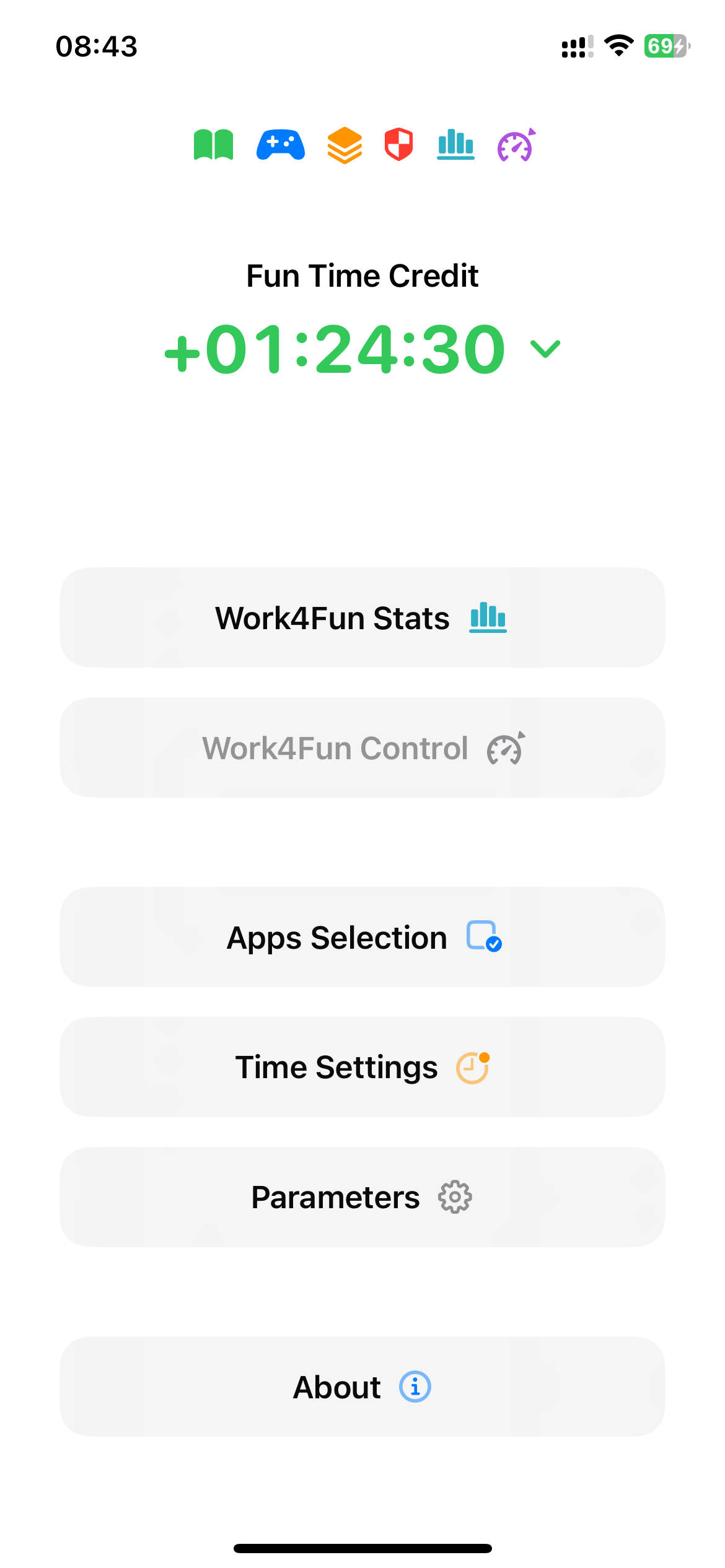
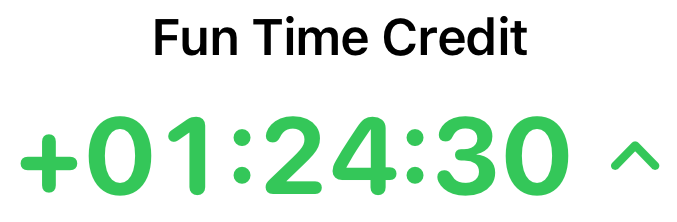 Fun Time Credit (FTC)
FTC is the core balance of Work4Fun: Work apps earn credit, and Fun apps spend it. Do focused work first, then enjoy entertainment while your credit lasts.
While you actively use Work apps, your FTC increases according to your settings. When you open Fun apps, the credit is consumed in real time. If FTC reaches zero, Fun apps are automatically blocked until you earn more.
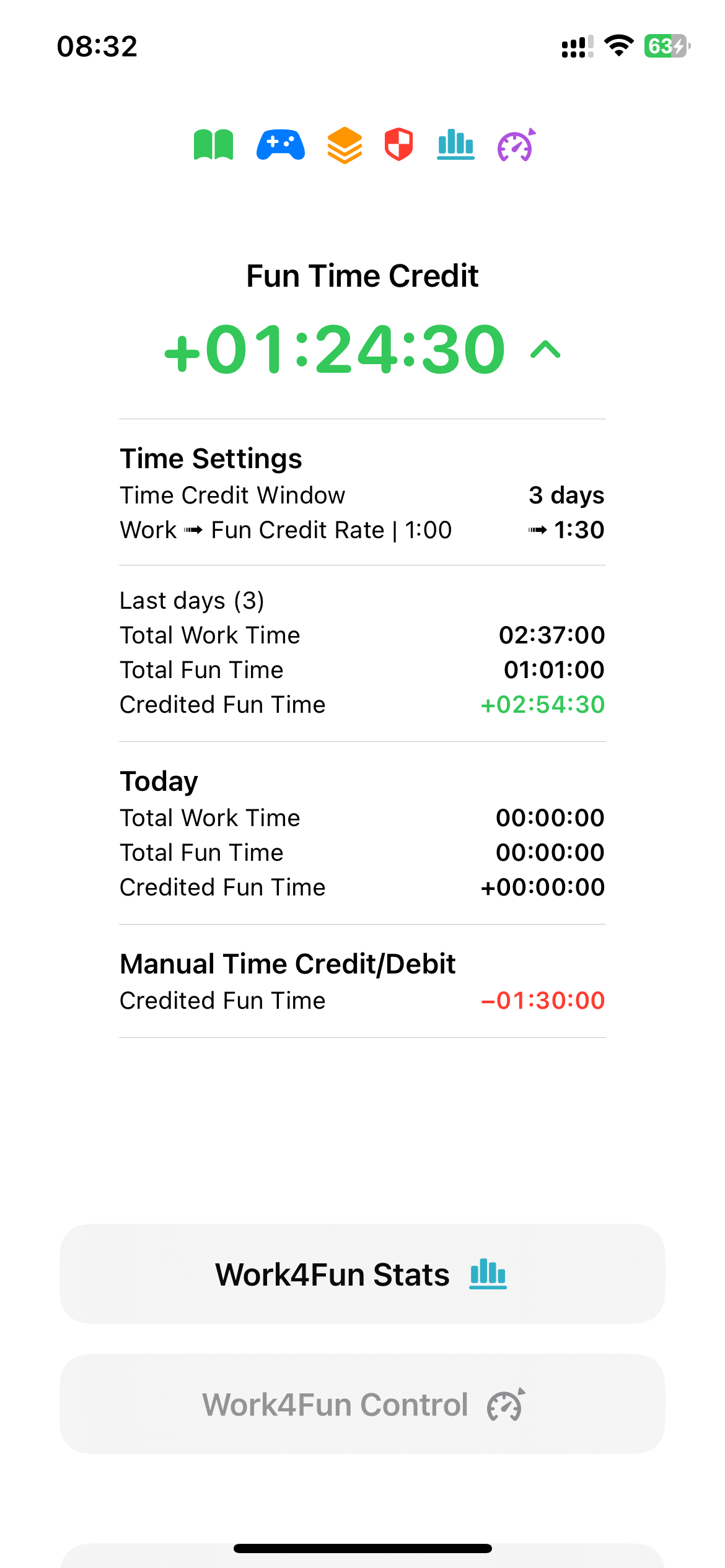
FTC updates in real time in both Stats and Control. Parents can add or remove minutes when needed (rewards, exceptions), and adults can use FTC to keep a clear, sustainable routine.
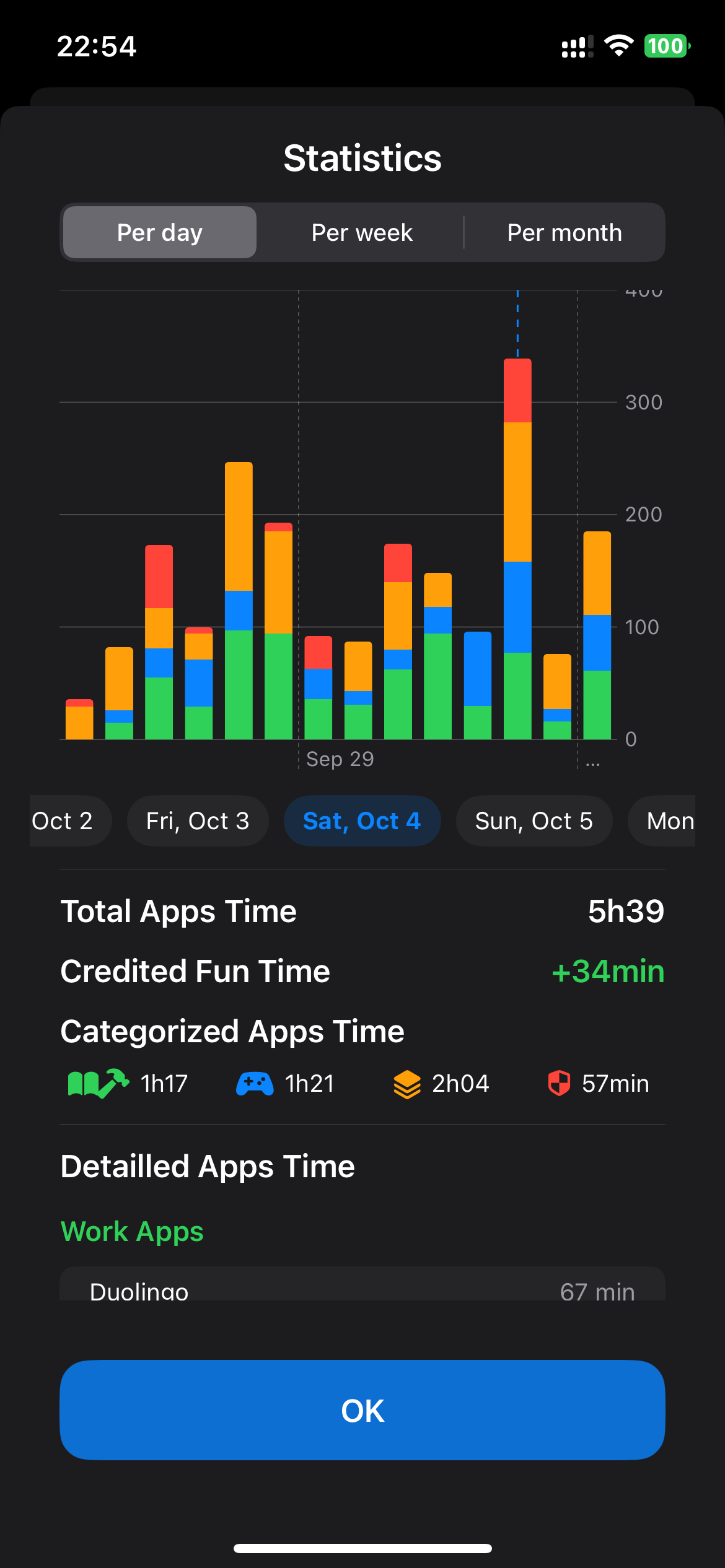
 Work4Fun Stats
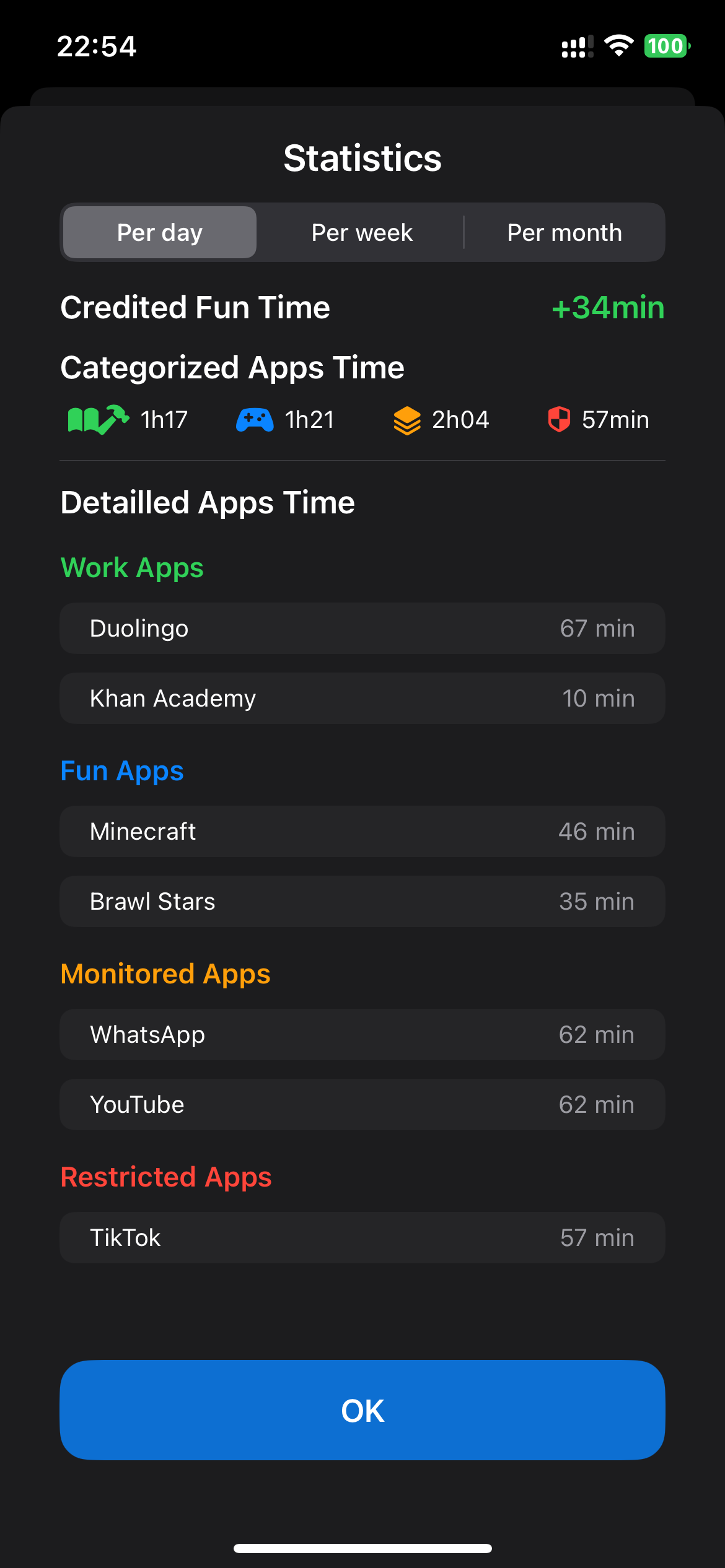
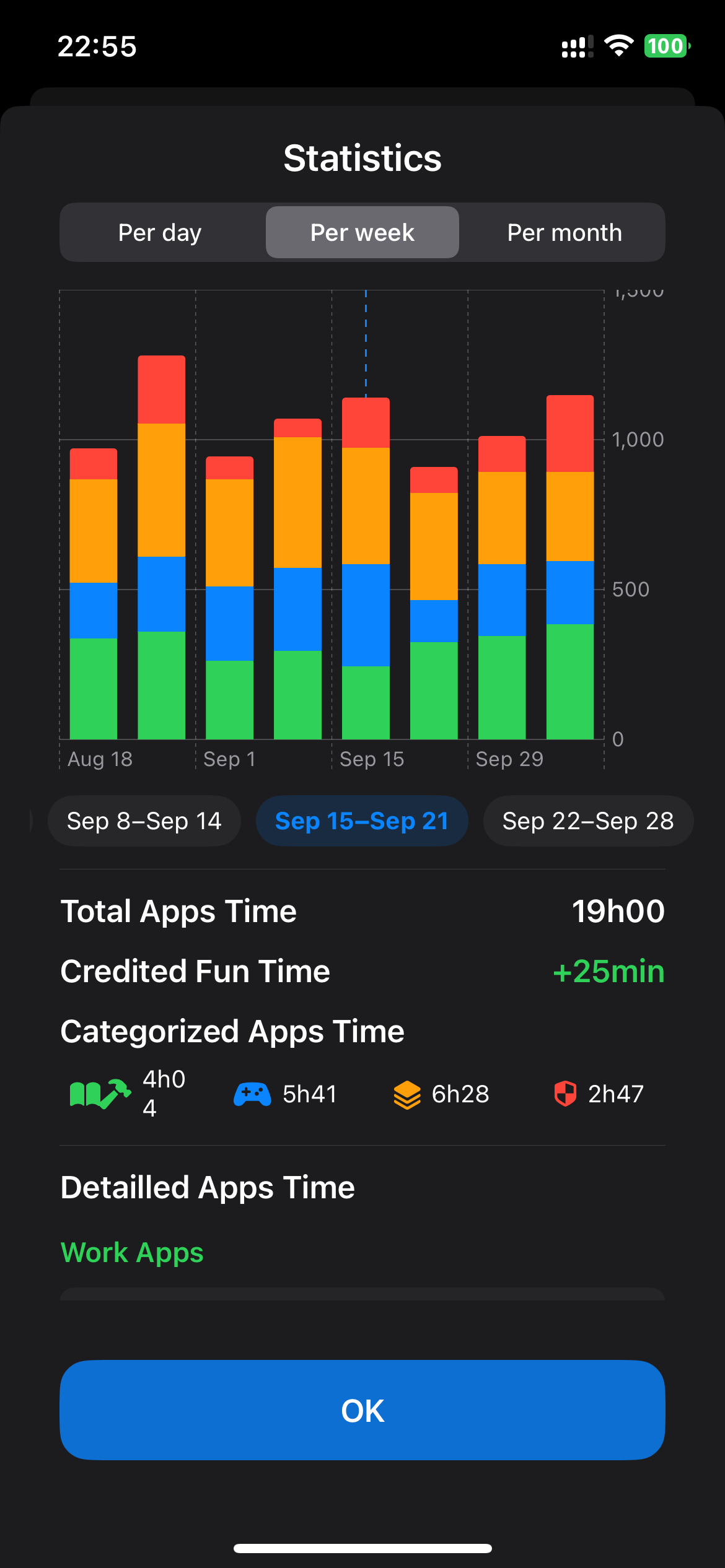
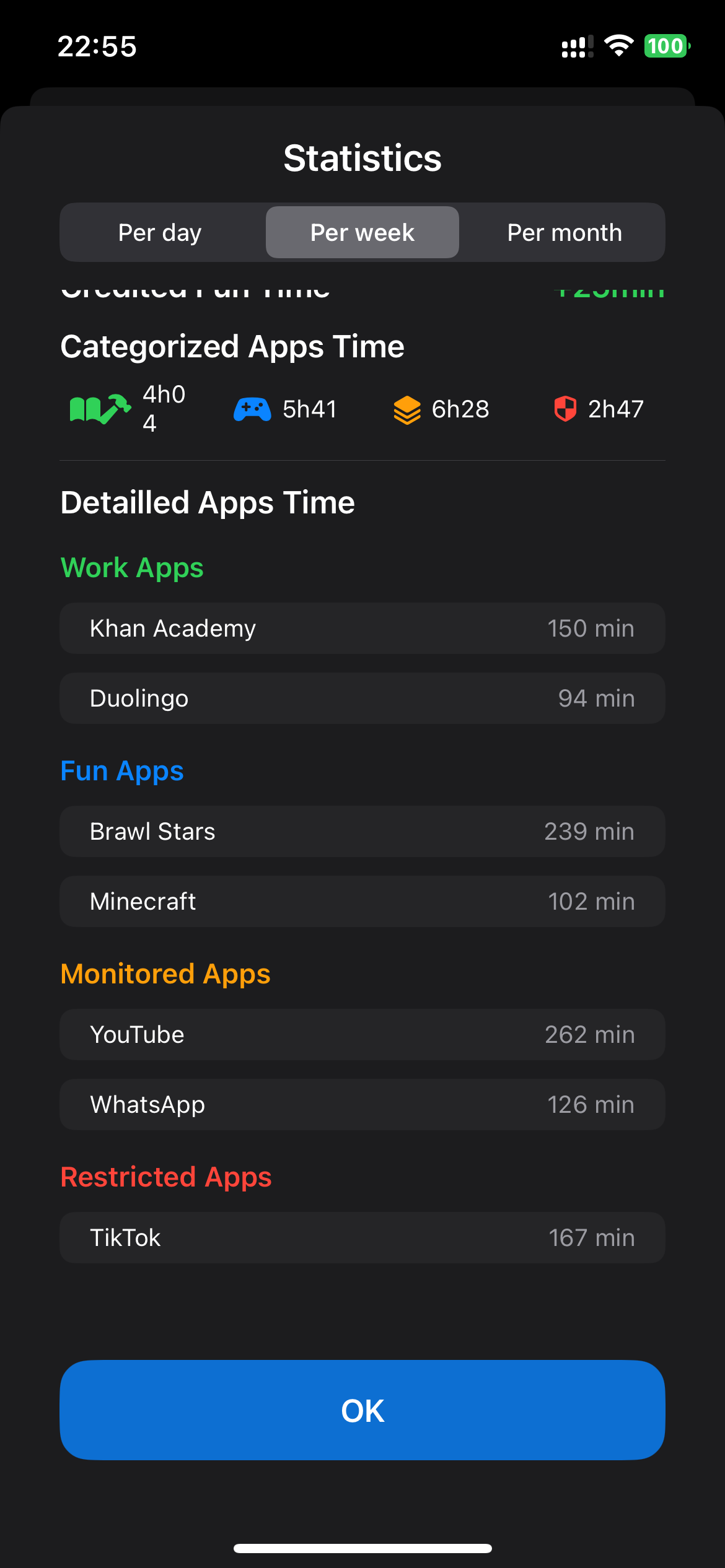
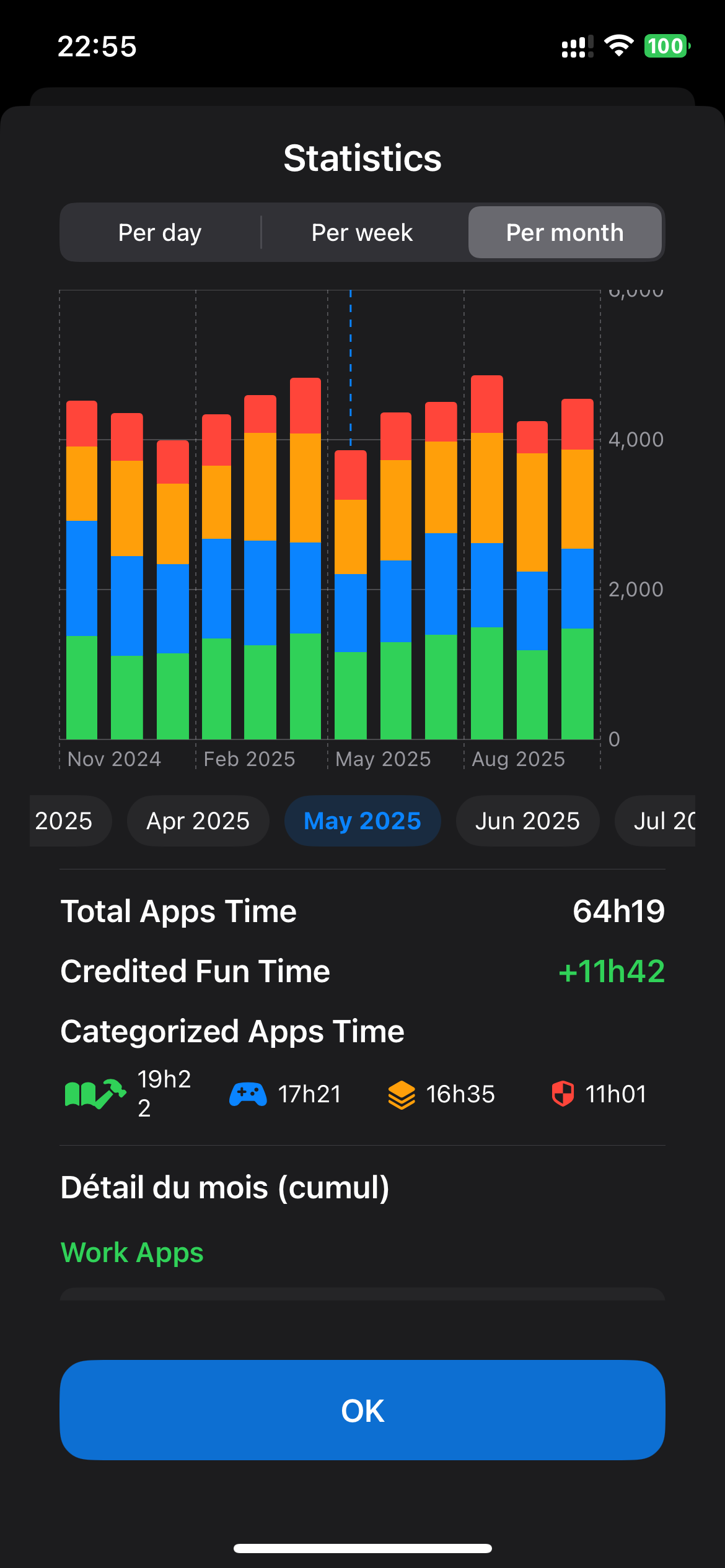
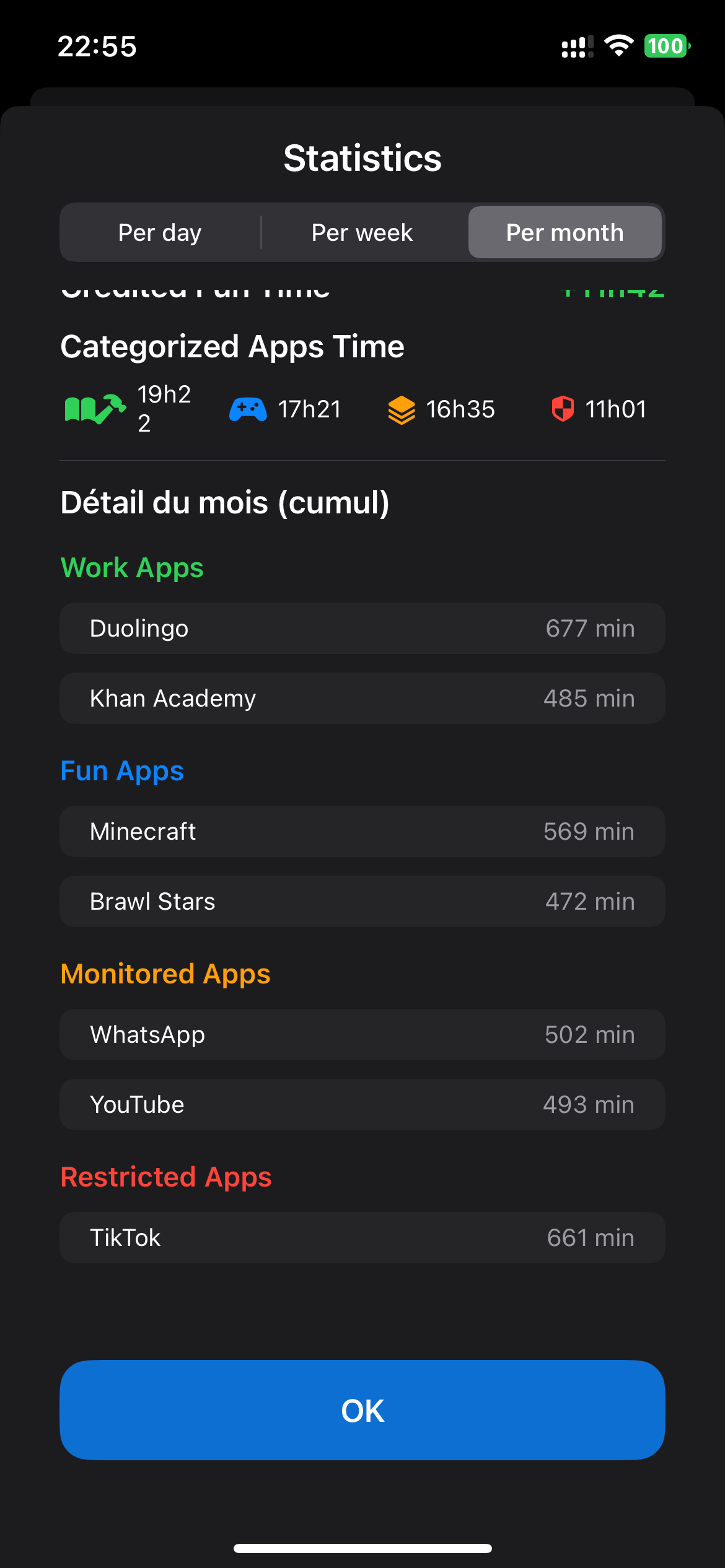
Understand where time goes. Work4Fun shows usage per app and per category with daily, weekly, and monthly views. For privacy and security on iOS, apps must be explicitly selected first in App Selection before they can be monitored or categorized as Work / Fun / Monitored / Restricted. Once selected, Stats aggregates the data so you can spot trends and time sinks at a glance.
 Work4Fun Control
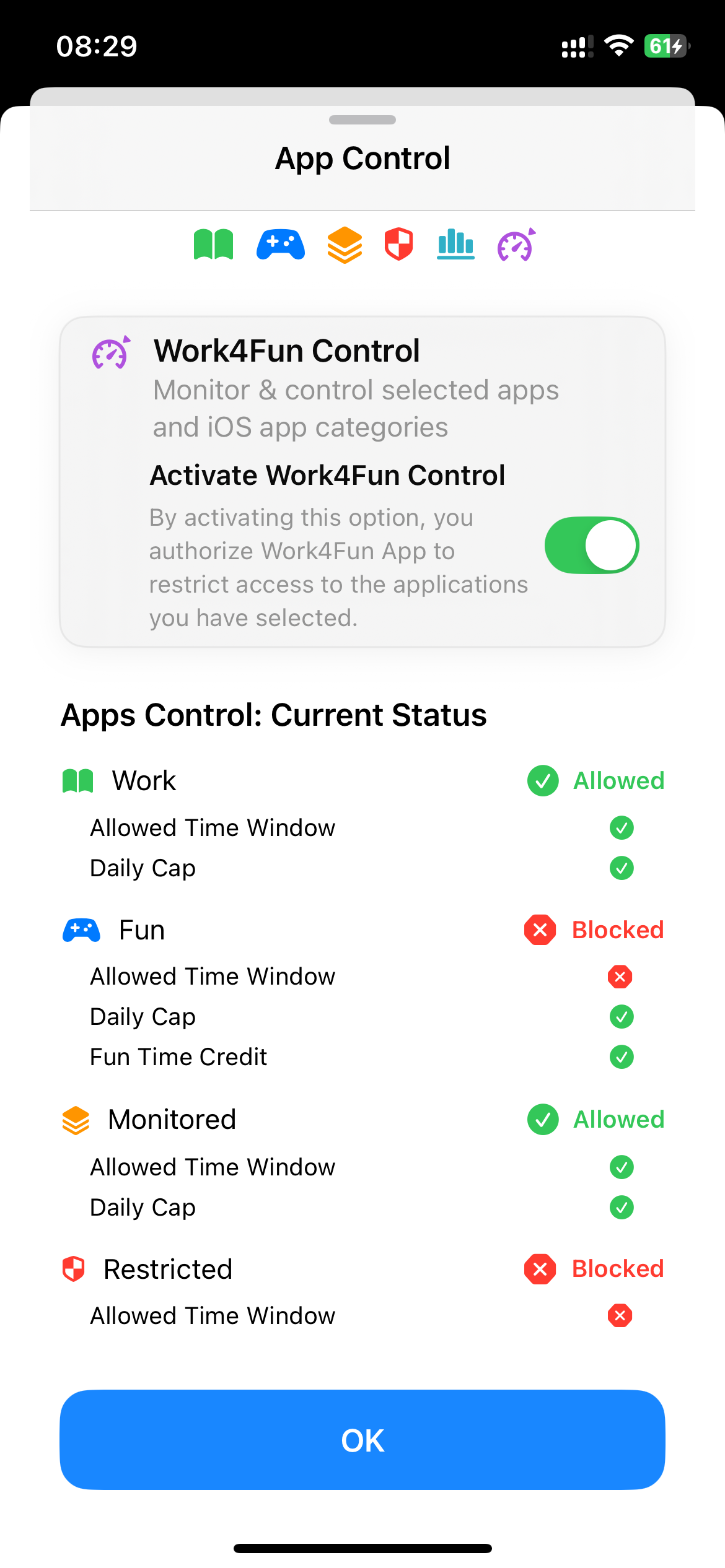
Turn rules into action. Control applies to the apps and iOS app categories you selected. When Work4Fun Control is enabled, you see the real-time status (Allowed / Blocked) of the WFMR categories, and Fun apps are automatically unlocked or blocked according to your current credit.

 App Selection
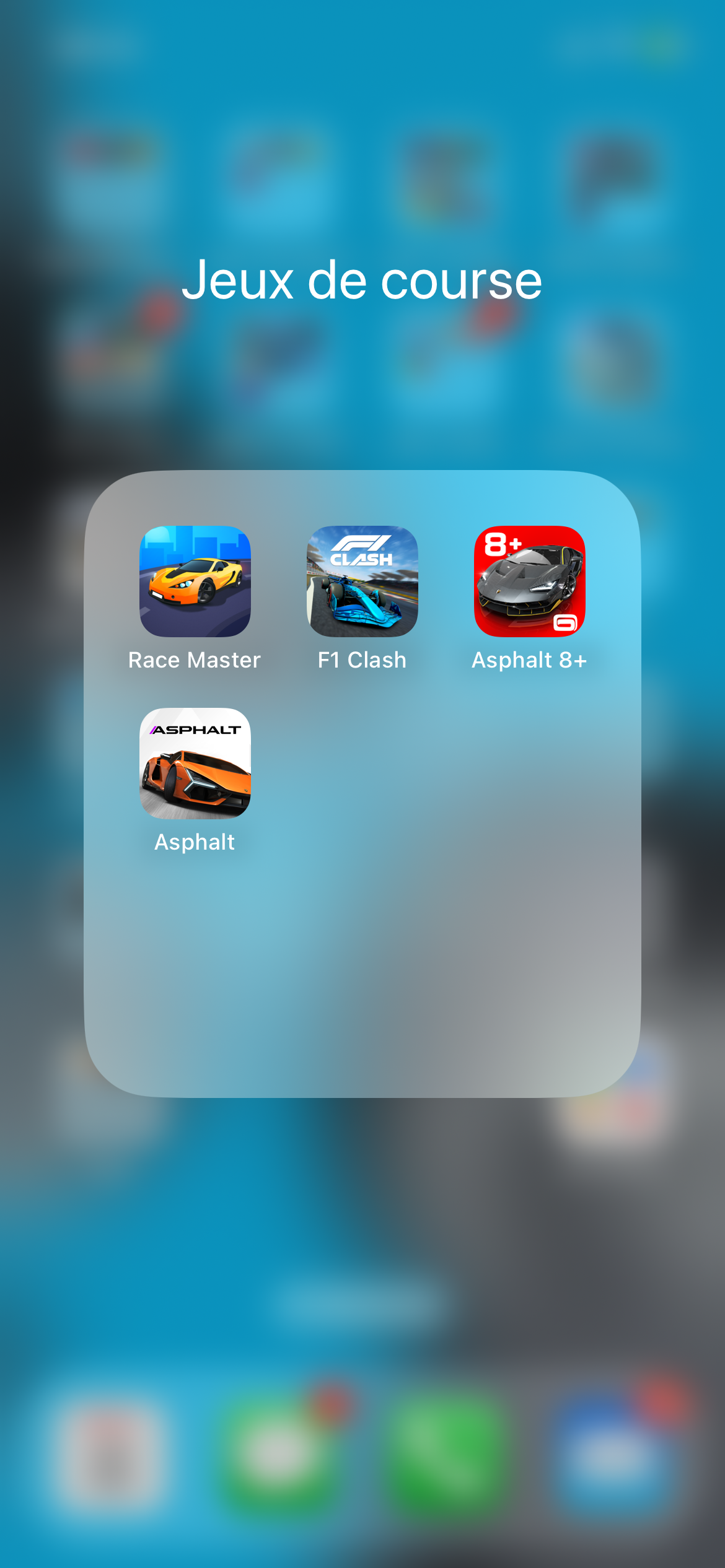
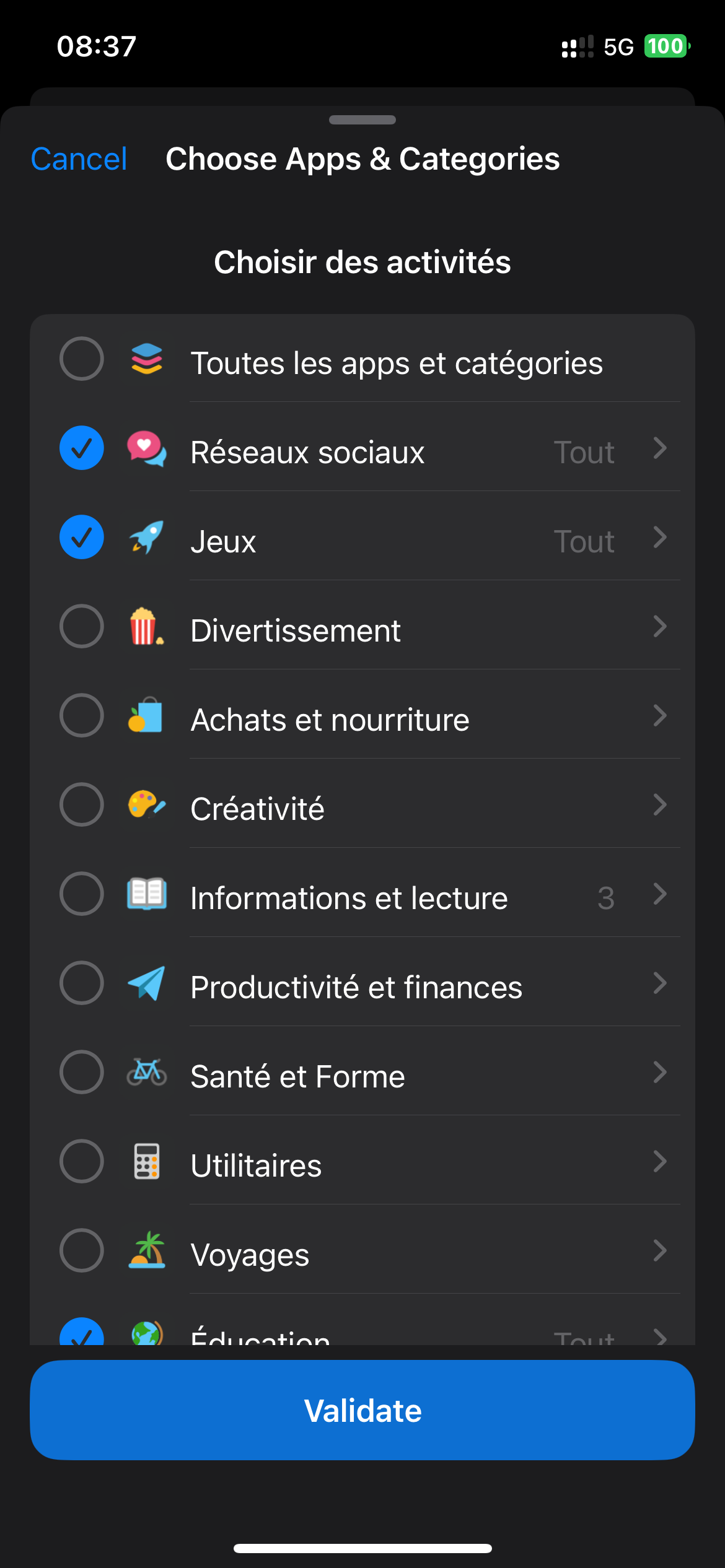
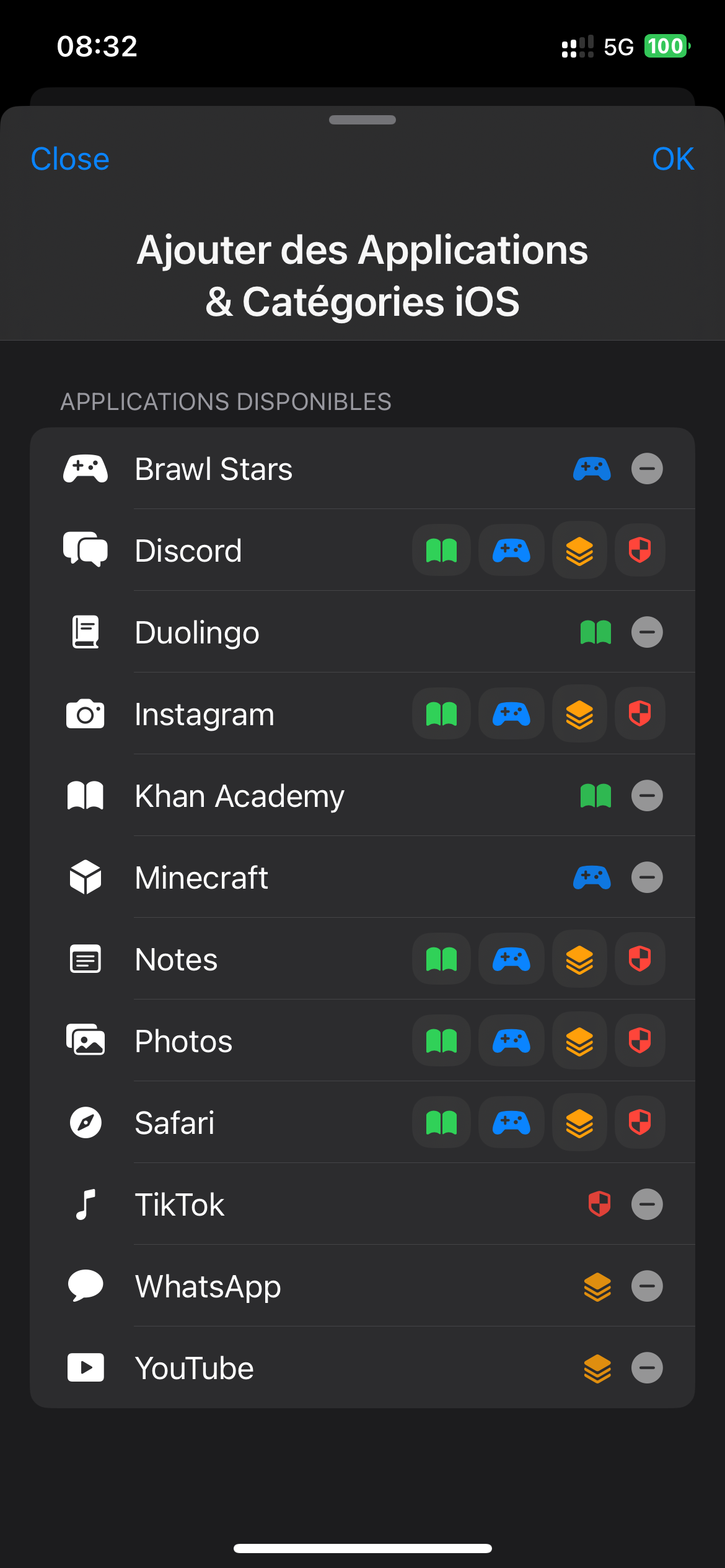
Choose what Work4Fun manages. First, select the individual apps and/or iOS app categories that will be handled by Work4Fun—for both monitoring (Stats) and control. Then, categorize each app into the WFMR model: Work, Fun, Monitored, or Restricted. This one-time setup keeps everything simple and predictable.
 Time Settings
Everything related to timing and screen-time rules lives here. Define how work converts into play, set daily caps, allow specific time windows, and fine-tune how the Fun Time Credit (FTC) is earned, spent, or adjusted.
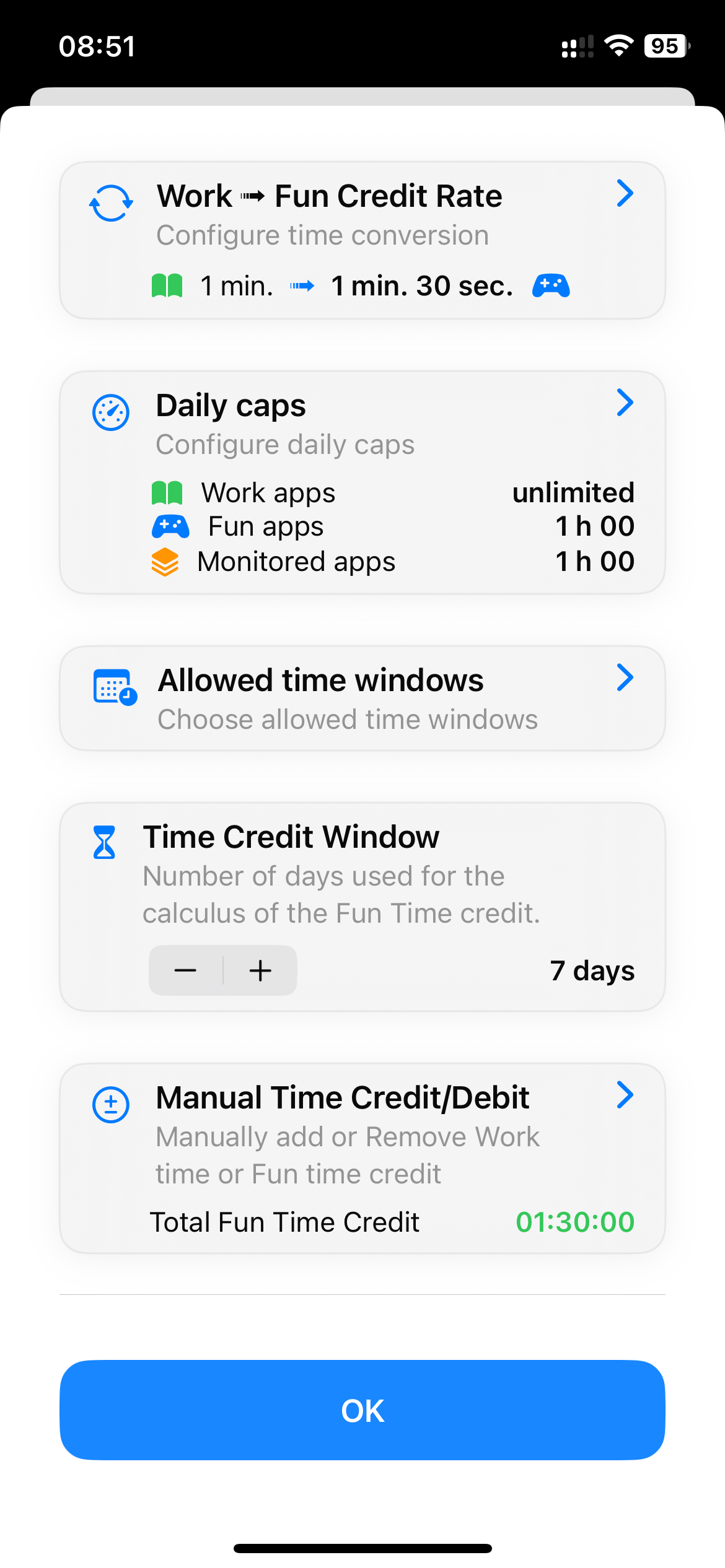
Choose how 1 minute of Work time translates into Fun time. For example, 1 min Work → 1 min 30 s Fun. This keeps your motivation loop simple: focus first, then enjoy.
Set a maximum daily usage for selected apps or categories. For example, cap Restricted apps to 30 minutes per day to prevent overuse.
Define per-day schedules across the week. For example, allow Fun apps weekdays 5–6 pm, and Saturdays 2–4 pm only. Outside these windows, Fun stays blocked.
Choose the calculation window for FTC (rolling period). If a lot of credit is earned, it can be used within this window; after it expires, unused credit no longer applies.
Add or remove Fun Time Credit manually (and optionally log Work time). Useful to reward outside efforts, apply exceptions, or grant an automatic weekly/monthly Fun allowance.
 Parameters
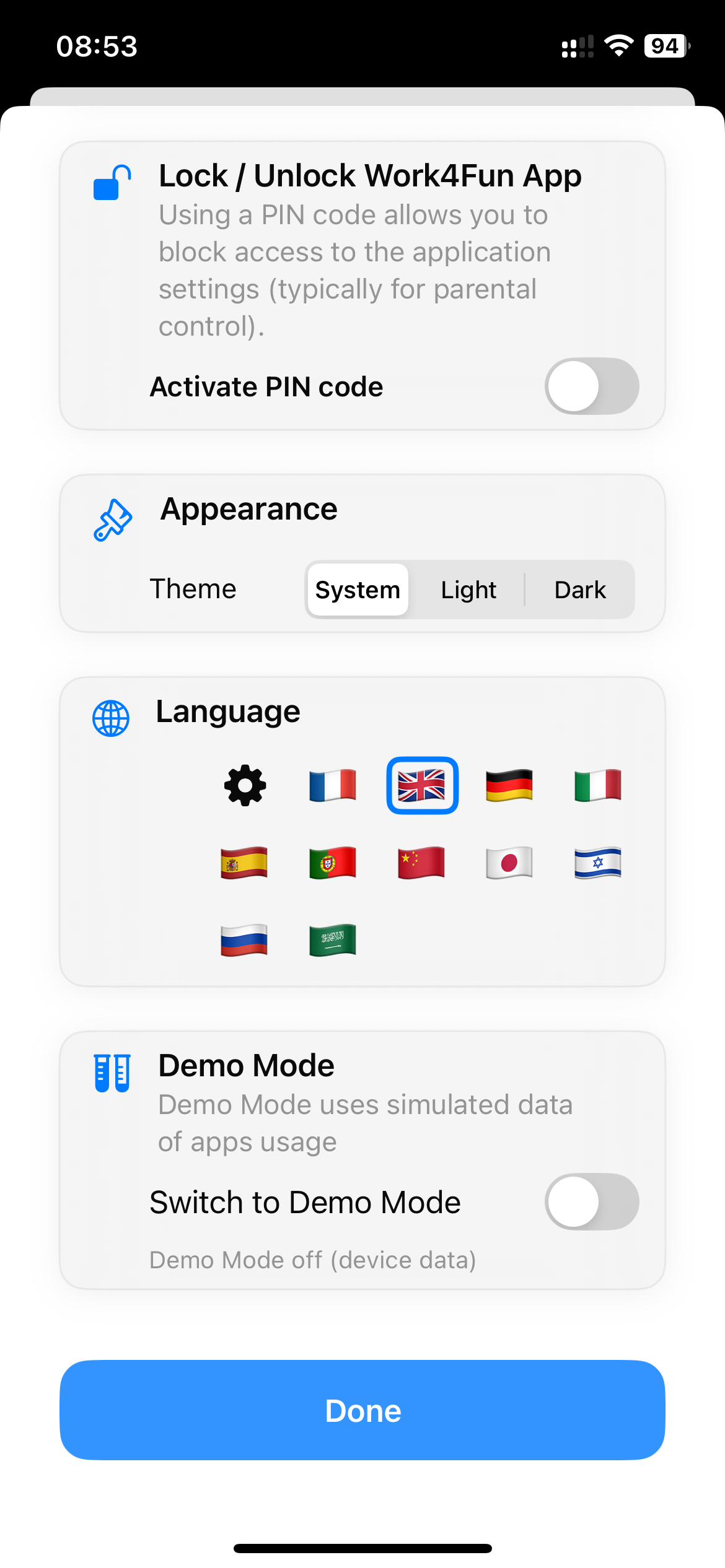
All application settings in one place. Check Screen Time status, secure your setup with a PIN, lock Work4Fun’s settings, and adjust appearance, language, and demo options.
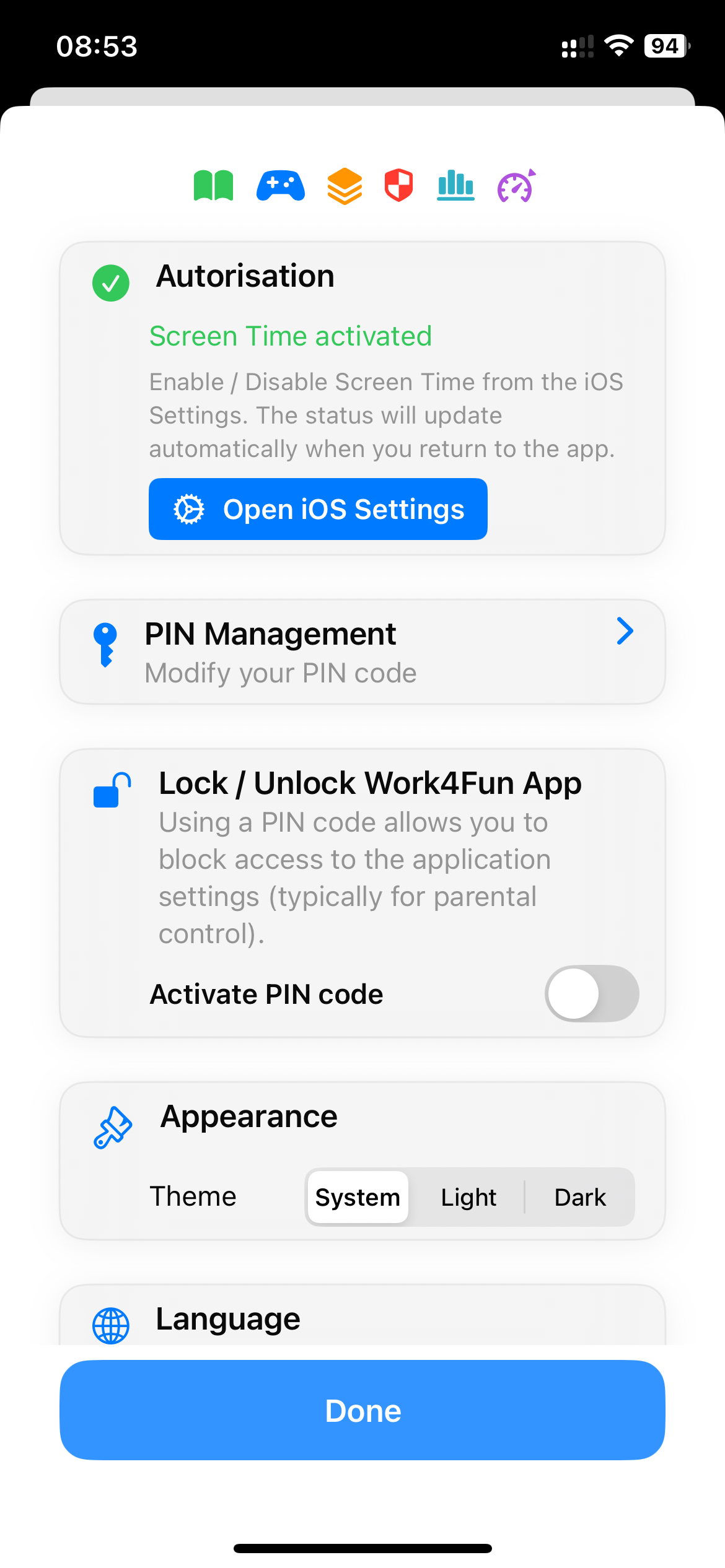
Must be enabled on iOS for Work4Fun to monitor and/or control your selected apps and categories.
Set a Parent PIN. Highly recommended for parental control to prevent unauthorized changes.
Protect Work4Fun settings with your PIN. When enabled, the PIN is required to change W/F/M/R categories or to access Time Settings and other sensitive areas.
Choose between Light and Dark modes to match your preference or environment.
Select your preferred app language for all screens and labels.
Explore Work4Fun’s features in a safe demo environment without affecting your real data.